 Coffee
PDF templates
Mac
A PDF template sets how your PDFs, prints and books look, with letterhead, a title page and page numbers. Coffee comes with its own templates, and you can make yours or add more from a directory.
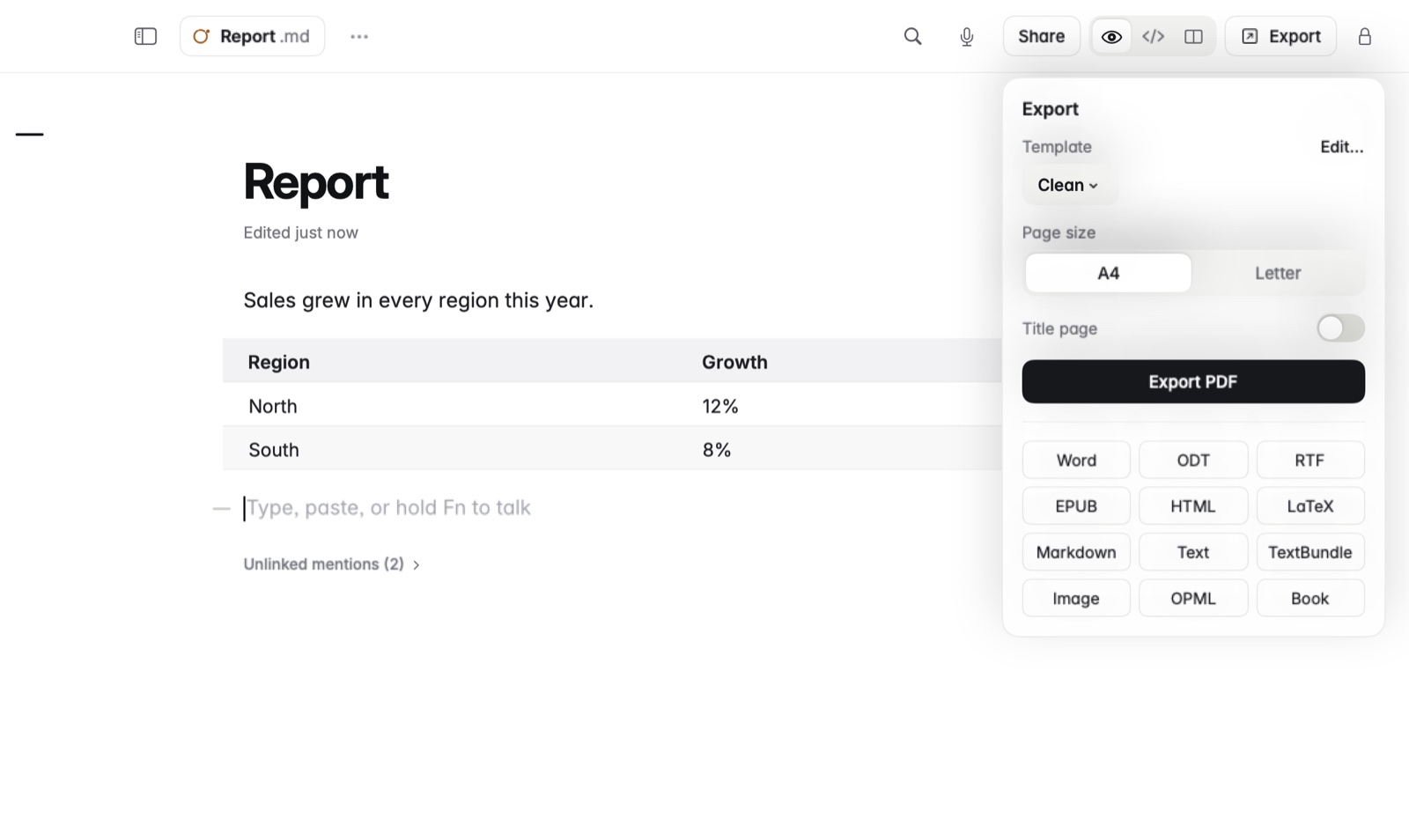
How to choose a template
- Press ⌘E to open Export.
- Pick one from the Template menu, then choose Export PDF.
How to make your own
- Open Settings and find PDF templates, then choose Edit Templates…. Or choose Edit… beside Template in the Export panel.
- Pick a template to start from.
- Change it, and watch the live page update as you go. You can choose an image for your logo with Choose Image….
- Choose Save as New Template… to keep it under Yours.
- Choose Use for PDFs to make it the one PDFs, prints and books use.
How to add templates from the directory
In the template editor, choose More templates. It opens the templates directory, where you add one in one click. Templates you add are listed under From the directory.
Good to know
The directory has layouts in two columns, a side column, cues, a screenplay, covers and signatures. When updates to your PDF templates are waiting, a banner says so, with Review or Update.