 Coffee
Exporting a note
Mac
Note › Export… (⌘E) saves the note as PDF, Word (.docx), EPUB, HTML, Markdown, plain text, RTF, OpenDocument, LaTeX, OPML or TextBundle. Image saves the whole note as one tall PNG.
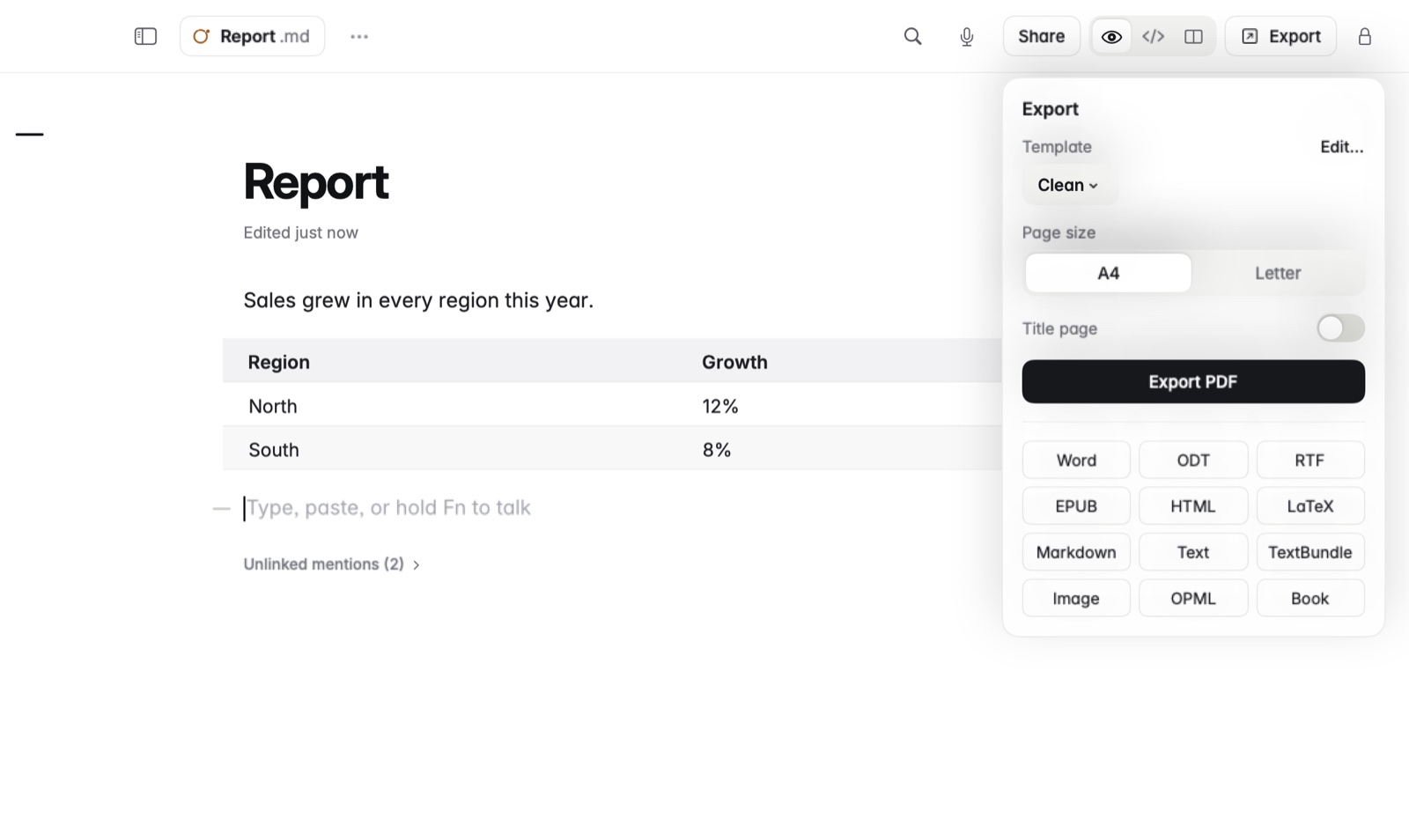
How to export a PDF
- Open the note and press ⌘E, or choose Note › Export….
- Pick a Template, and a Page size: A4 or Letter.
- Turn Title page on or off.
- Choose Export PDF, then where to save it.
How to export another format
- Press ⌘E.
- Choose a format: Word, ODT, RTF, EPUB, HTML, LaTeX, Markdown, Text, TextBundle, Image or OPML.
- Choose where to save the file.
Press Esc to close the panel without exporting.
Good to know
- Word files have real headings, lists, tables, links and pictures, so they're easy to keep editing in Word.
- Formulas, diagrams, callouts and footnotes carry into exports.
- Book in the same panel makes an EPUB from several notes. See Making an e-book.
- Coffee doesn't use Pandoc, so there's nothing else to install.