 Coffee
Fonts and text size
MaciPhone and iPad
Settings has a font for the page and a second one for the Markdown view and code. You can make the text bigger or smaller from the View menu, and choose how wide the column of text runs.
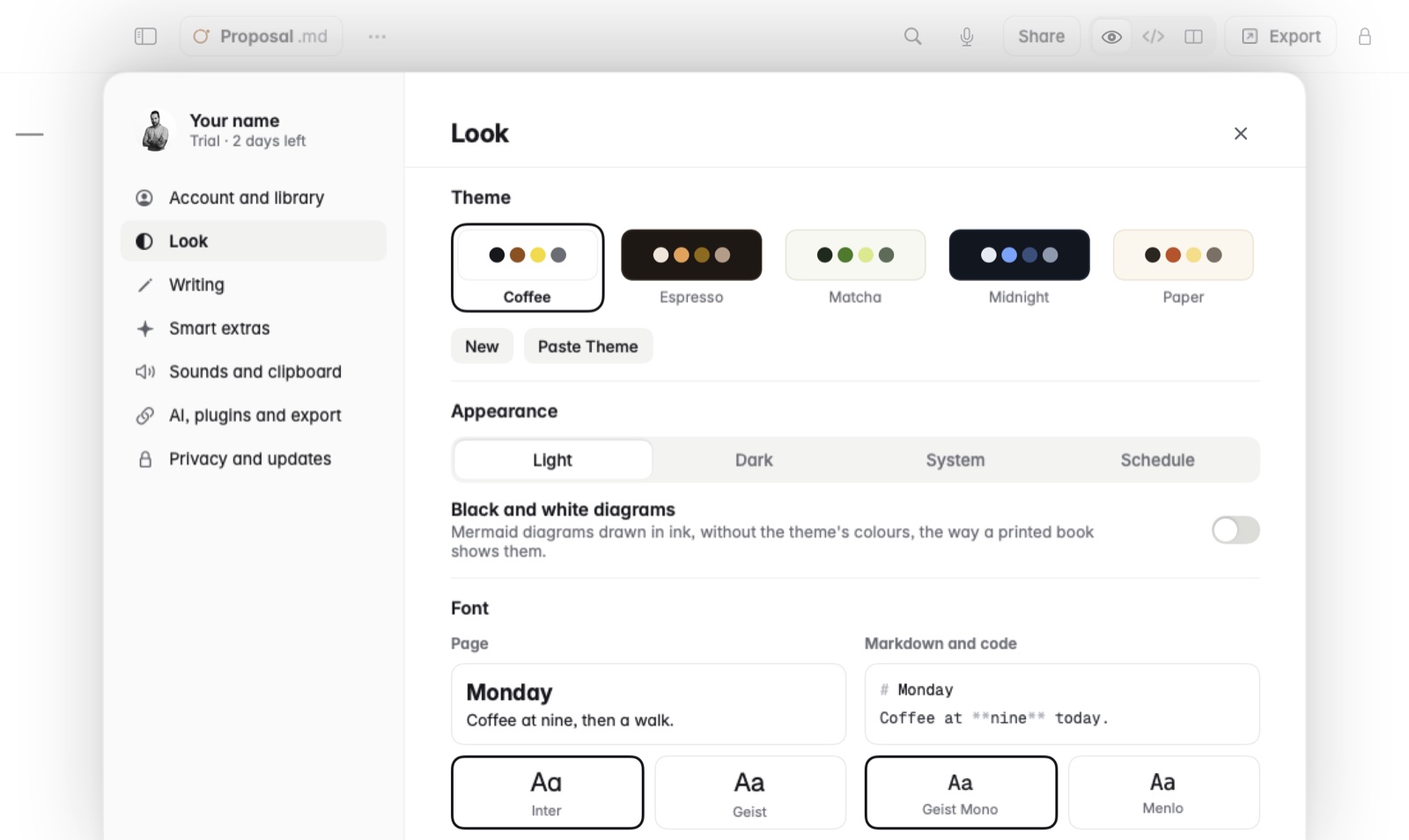
Choose a font
- Open Settings and go to Look.
- Under Font, the Page column has the built-in choices, each with a sample. Click one to use it.
- For any other font installed on the Mac, choose Other and pick it from the list.
- The Markdown and code column works the same way. It can use any monospaced font on your Mac.
Change the text size
- View › Larger Text (⌘+) makes the text bigger.
- View › Smaller Text (⌘-) makes it smaller.
- View › Actual Size (⌘0) puts it back.
On the Mac, Settings › Writing also has Text size, with − and + buttons and the size as a percentage.
On iPhone and iPad, Settings › Text has Font and a Size slider.
Change the column width
In Settings › Writing, Column width has Narrow, Normal and Wide. A narrow column is easier to read in long stretches of prose. A wide one gives tables and code more room.
Good to know
Formulas have their own typeface, chosen separately. See maths typeface.