 Coffee
Choosing where your notes live
MaciPhone and iPad
Your notes are ordinary .md files in a folder you choose, called your library. Any other editor can open them, and leaving Coffee is free.
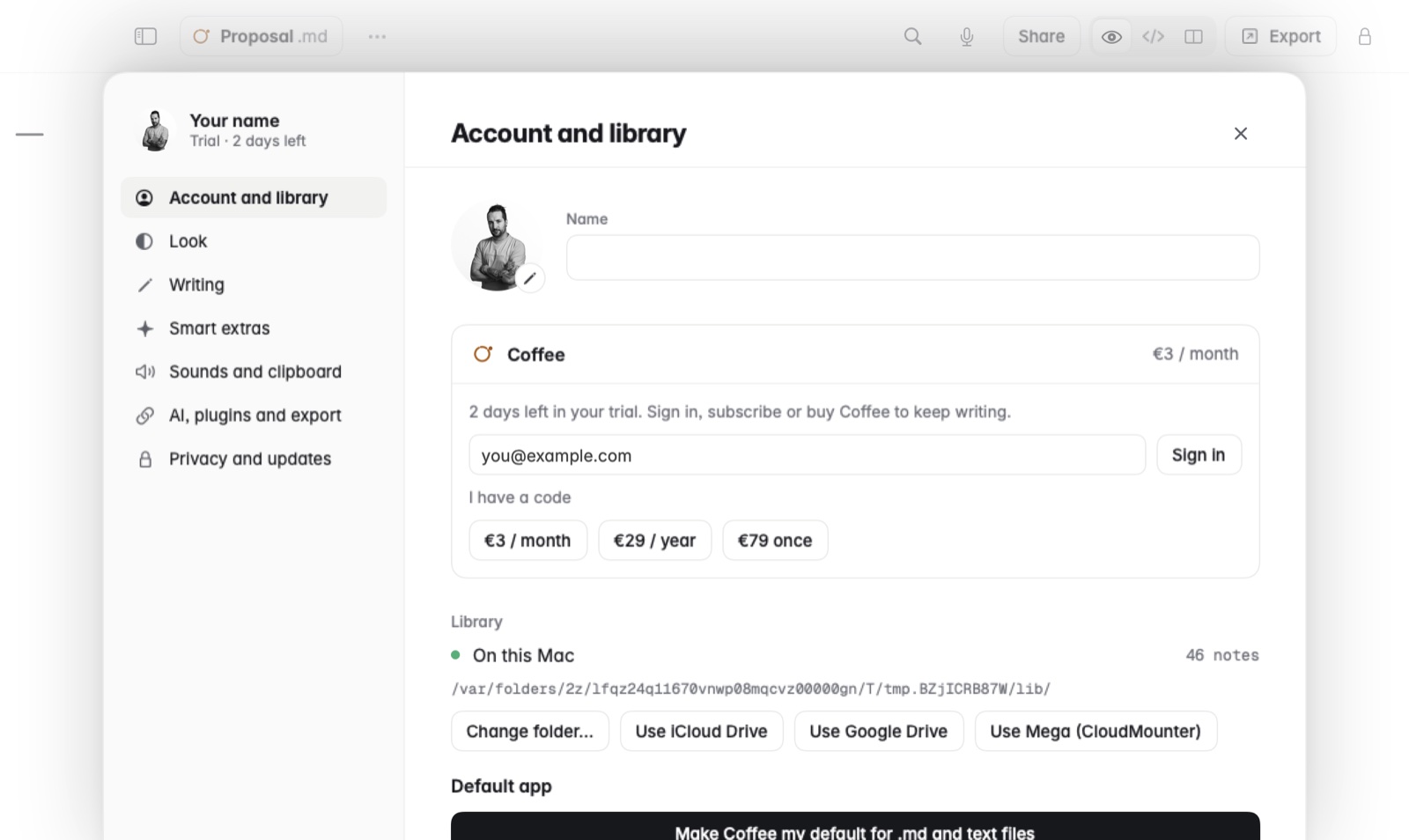
We recommend iCloud Drive. It's the one place Coffee on your Mac, iPhone and iPad all open, so the same notes are on every device without you doing anything.
How to use iCloud Drive
- On the Mac, open Settings.
- Choose Use iCloud Drive. Coffee moves your notes into its own folder there, shown with Coffee's icon.
- Open Coffee on your iPhone or iPad. It finds the notes by itself, with no folder to pick.
See Using Coffee on Mac and iPhone together for more.
How to choose another folder
If you only use a Mac, the library can be any folder: on the Mac itself, on an external disk, or in Google Drive, Dropbox or OneDrive, through that service's own Mac app.
- Open Settings › Library. It shows the folder in use.
- Pick another folder, or one of the drives Coffee offers.
Moving keeps each note's version history and comments.
Good to know
- Coffee has no sync of its own and doesn't keep your notes on a server. The folder's own service does the syncing.
- Coffee for iPhone and iPad opens the same files only when the folder is in iCloud Drive.
- To keep folders from elsewhere in the sidebar as well, see Folders from anywhere.