 Coffee
Using Coffee on Mac and iPhone together
MaciPhone and iPad
To have your notes on your Mac, iPhone and iPad, keep them in iCloud Drive. This is what we recommend for anyone with more than one device.
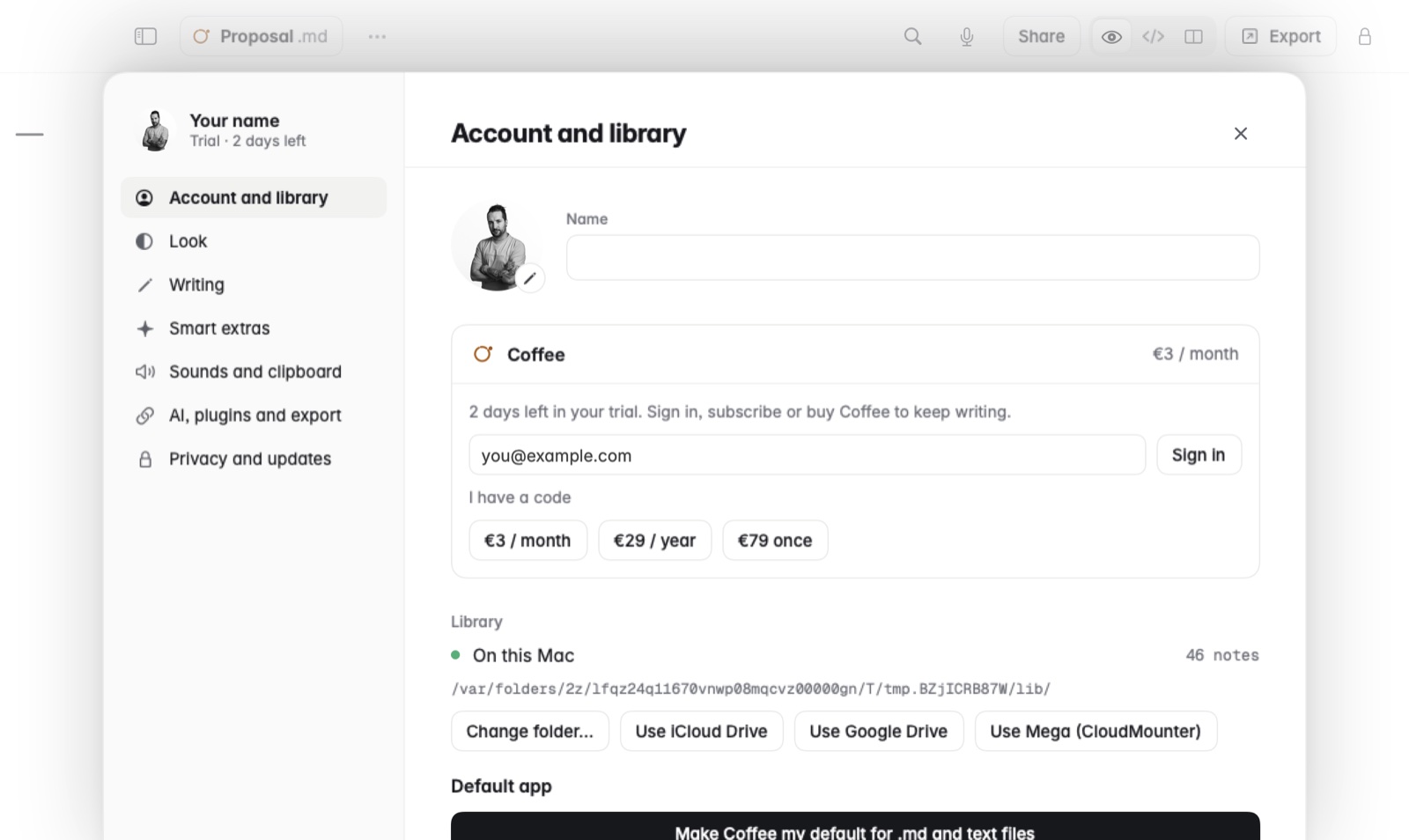
How to set it up
- On the Mac, open Settings and choose Use iCloud Drive. Coffee moves your notes into its own folder there, shown with Coffee's icon. Their version history and comments come along.
- On iPhone and iPad, open Coffee and sign in with the same email. It finds your notes by itself, with no folder to pick.
Every device must be signed in to the same Apple Account, with iCloud Drive on. From then on, a note you change on one device is on the others once iCloud has synced it. Pins, sort order and saved searches come along too.
If a note doesn't show up
- Check that each device uses the same Apple Account and has iCloud Drive turned on.
- Give iCloud a moment. Coffee shows a change once iCloud has brought it to that device.
Good to know
- Coffee has no sync server of its own, so your notes never pass through it.
- Your notes stay ordinary Markdown files in iCloud Drive.
- One purchase unlocks Coffee on your Mac, iPhone and iPad.
- Notes in Google Drive, Dropbox or OneDrive work on the Mac only. See Notes in Google Drive, Dropbox or OneDrive.