 Coffee
Sign a note
Mac
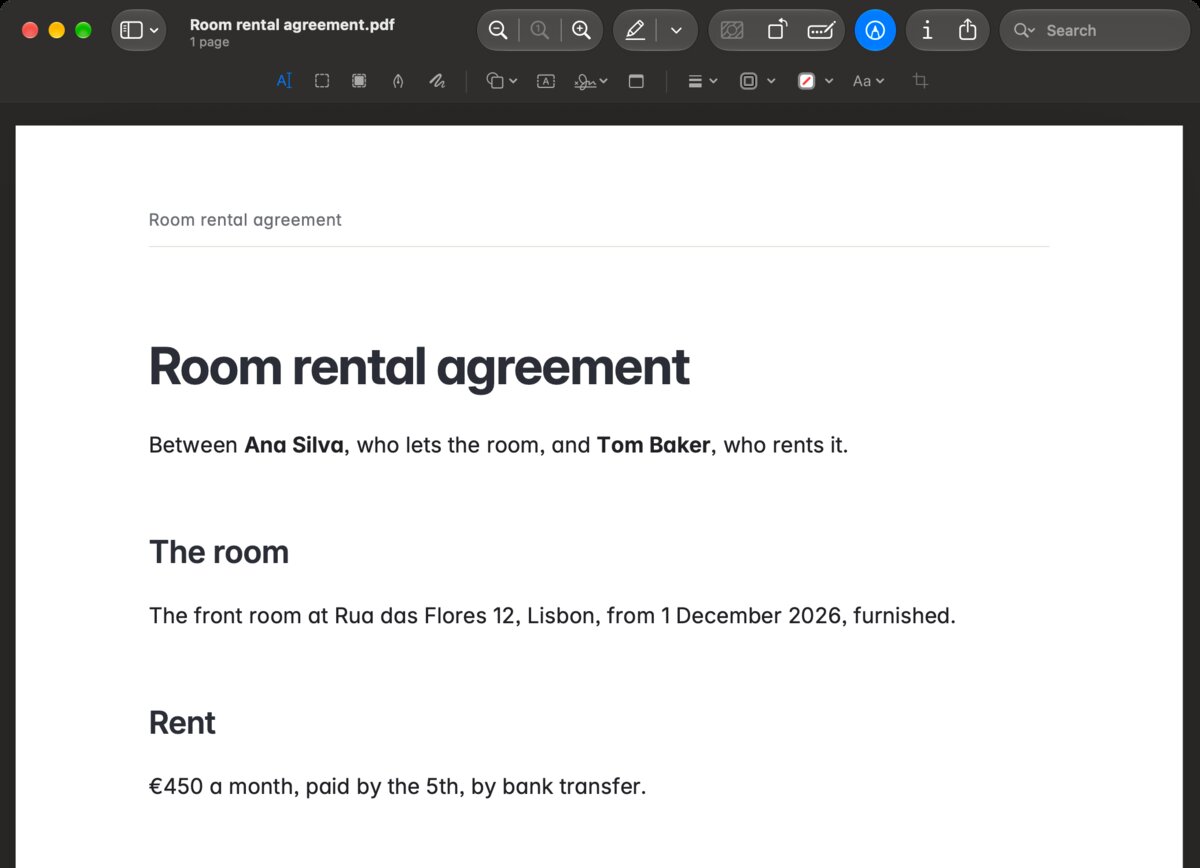
To sign a note, export it as a PDF and sign the PDF in Preview, the Mac's own app for PDFs. Your note stays as you wrote it.
How to sign it
- In Coffee, choose Note › Export… and Export PDF.
- Open the PDF in Preview.
- Click the Markup button, then the Sign button in the bar that appears. The first time, Preview asks you to make a signature: sign on the trackpad, or on paper held up to the camera.
- Click your signature to place it, drag it onto the line, and save.
Example
A note called Room rental agreement ends with a heading Signed and the two names under it. Export it, sign beside your name in Preview, and send the PDF.
Good to know
- Preview keeps your signatures on your Mac. To change them, choose Tools › Annotate › Signature › Manage Signatures….
- The signature is in the PDF only, never in the note.