 Coffee
Markdown to PDF on the Mac, with templates
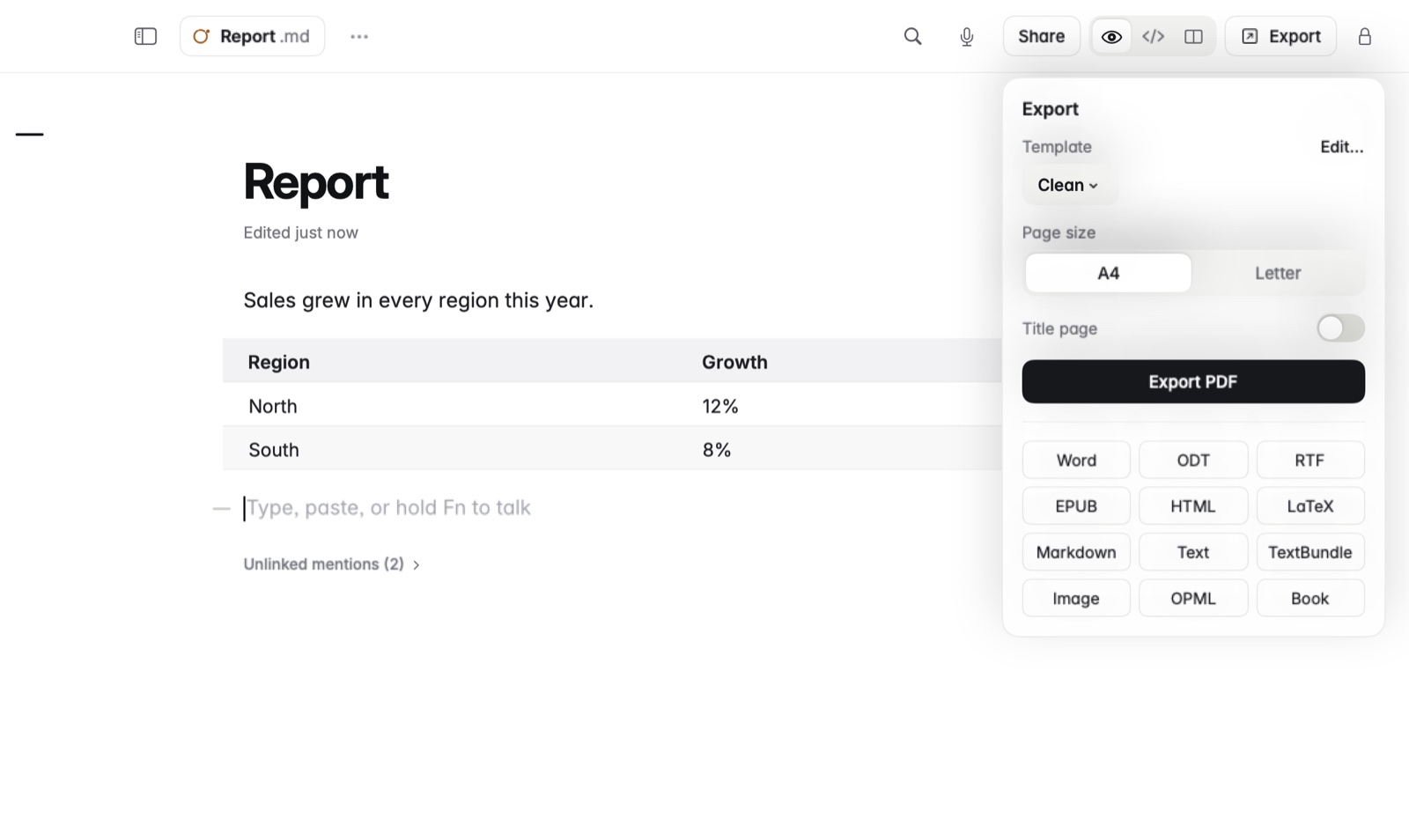
Coffee turns a Markdown note into a PDF with ⌘E. Pick a template, A4 or Letter, and a title page if you want one. Tables, equations, diagrams and pictures come through as they look in the note, and there's no Pandoc or LaTeX to install.
How to export a PDF
- Open the note and press ⌘E, or choose File › Export….
- Pick a Template, and a Page size: A4 or Letter.
- Turn Title page on or off.
- Choose Export PDF, then where to save it.
File › Print… (⌘P) uses the same layout and the same template, so a print looks like the PDF.
Templates
A template sets how your PDFs, prints and books look: the typeface, a colour for headings and links, the text size, the margins, the header, the footer and the title page. Coffee comes with five:
- Clean: Coffee's own, and the one PDFs use until you choose another.
- Letterhead: your logo and company name at the top, and the date in the footer.
- Report: a title page, serif type and wide margins.
- Academic: serif type at 12 pt, wide margins and a title page.
- Minimal: just the words, with narrow margins.
Your logo and company name. Choose Edit… beside Template in the Export panel, start from any template, and change it while a live page shows the result. Choose Image… puts your own logo on the left, in the middle or on the right, and the company name goes in the header and on the title page. Save as New Template… keeps it, and Use for PDFs makes it the one Coffee uses.
More from the directory. The PDF template directory has free templates you add in one click: a business letter, an invoice, a contract with lines to sign, a proposal, a résumé with a side column, meeting minutes, a manuscript, a screenplay, a journal paper in two columns, a newsletter, Cornell notes and more. Some read the note's front matter, so a client, a date or an address lands in its place on the page.
Headers, footers and page numbers
Markdown has no page settings, so headers and footers come from the template, never from the file. In Coffee:
- Header: the note's title, your company name, or nothing, with your logo if the template has one, above a thin rule on each page.
- Footer: page numbers, written as "Page 2 of 5", and the date if you want it.
- Facing pages, for a book: a wider inner margin by the binding, and page numbers on the outer edge.
The title page doesn't count as page 1, so numbering starts where the writing does.
Title pages
Turn on Title page in the Export panel, or in a template, and the PDF opens with the note's title, your name and the date, with your logo if the template has one. Some templates in the directory fill the title page with their colour. The title is the note's name, so rename the note before you export to change it.
Tables
Markdown tables print with the header row on a tint, every second row shaded, and each column aligned as its colons say. Columns share the page width equally, so keep to about five on a portrait page. To bring a table in from a spreadsheet, copy the cells and paste them into a note: they arrive as a Markdown table. There's also a free Excel to Markdown converter.
Equations
TeX between two $$ lines, and inline $…$ in a sentence, are drawn as formulas by Coffee itself, in the note and in the PDF. That covers everyday TeX: Greek letters, fractions, roots, sums and integrals with limits, matrices, cases and chemistry with \ce{}. It isn't all of LaTeX, and anything Coffee can't read stays as TeX. See maths in the help.
$$
\int_0^1 x^2 \, dx = \frac{1}{3}
$$
Diagrams
Mermaid code blocks that Coffee draws, such as flowcharts, sequence diagrams, pie charts and gantt charts, print as the diagram rather than the code. Callouts, footnotes, task lists and highlights print too. Footnotes move to the end of the document.
Images
Pictures stored with the note print scaled to fit the page, and a size written in the note, such as , is kept. Keep pictures with your notes rather than on the web, so they're there when the PDF is made.
Why is my PDF blank?
A blank or nearly empty PDF from a Markdown app usually has one of a few causes:
- It printed before the preview was drawn. Apps that print a web preview can print an empty page if the preview hasn't finished loading. Wait for it to show, then print again.
- It printed the wrong pane. Some editors print the source, or nothing, when the cursor is in the editing pane. Print from the preview, or use the app's own export.
- The theme doesn't suit paper. A dark theme's light text can come out faint, or invisible, on a white page.
- There's nothing outside the front matter. A file that is only front matter or comments has no body to print.
Coffee lays out the PDF itself from the Markdown rather than printing a web view, so there's no preview to wait for, and the colours come from the template, not from your theme. If a Coffee PDF has nothing but a page number, the note is only front matter or comments, which Coffee leaves out. A private note won't export until you unlock it. For Pandoc and other apps, how to export Markdown to a good-looking PDF goes through the fixes one at a time.
Other formats
The same panel exports Word (.docx), with real headings, lists, tables, links and pictures to keep editing in Word, plus EPUB, HTML, LaTeX, OpenDocument (ODT), RTF, Markdown, plain text, OPML, TextBundle, and Image, one tall PNG of the whole note. Book makes one EPUB from a folder or a tag, one chapter per note. PDF, Word and HTML write in the answers to your sums, and Markdown keeps the note as you typed it. More in Exporting a note and PDF templates in the help.
Good to know
- PDF templates are on the Mac. On iPhone and iPad, Coffee makes the PDF from its HTML export, on A4 pages with 2 cm margins.
- Front matter and HTML comments are left out of the PDF.
- Margins are Narrow, Normal or Wide, and pages are portrait. For a wide table on a landscape page, export to Word and turn the page there.
- There's no custom CSS. A template's look is its settings, and a template from the directory carries no code.
Further reading
- How to export Markdown to a good-looking PDF on the Mac
- PDF templates for Coffee
- Markdown to Word on the Mac
- Maths and equations in Markdown
- Coffee, the Markdown editor for Mac
Questions
Why is my Markdown PDF export blank?
Usually the app printed its preview before it was drawn, printed the editing pane instead of the preview, or used a dark theme whose light text doesn't show on white. A file with only front matter or comments is blank too. Coffee lays out the PDF itself, so there's no preview to wait for, and its colours come from the template.
What can I do when PDF export in a Markdown editor isn't working?
Export from the preview rather than the source, wait until the preview has finished drawing, switch to a light theme, and check that the file has text below its front matter. With Pandoc, a PDF needs a LaTeX engine or another PDF engine installed. Coffee needs nothing else installed: press ⌘E and choose Export PDF.
Is there a Markdown editor with table support and PDF export?
Yes. Coffee prints Markdown tables in its PDFs with a shaded header row and the alignment the colons set, and pastes cells from Excel, Numbers or Google Sheets as a table. Typora and iA Writer export tables to PDF too.
Is there a Markdown editor with equation support and PDF export?
Yes. Coffee draws TeX in $$ blocks and inline $…$ as formulas, natively, in the note and in PDF, Word, EPUB and HTML exports. It covers everyday TeX rather than all of LaTeX.
Can I convert Markdown to PDF with headers and footers?
Yes, with a tool that has them, because a Markdown file holds no page settings. In Coffee the template sets them: a header with the note's title or your company name and logo, and a footer with page numbers and the date. With Pandoc they take LaTeX or CSS.
Do I need Pandoc or LaTeX to make a PDF in Coffee?
No. Coffee makes the PDF itself, with nothing else to install.
How much does Coffee cost?
14 days free, with no card or account. Then €3 a month, €29 a year, or €79 once with two years of updates. PDF templates are included.
14 days free, with no card and no account. Then €3 a month, €29 a year, or €79 once with two years of updates. One purchase covers your Mac, iPhone and iPad. macOS 15 or later, iOS 18 or later. See pricing.