 Coffee
Connecting AI apps over MCP
Mac
Settings › Connect AI apps lets Claude, Cursor and other apps read and write your notes over MCP. It's off until you turn it on.
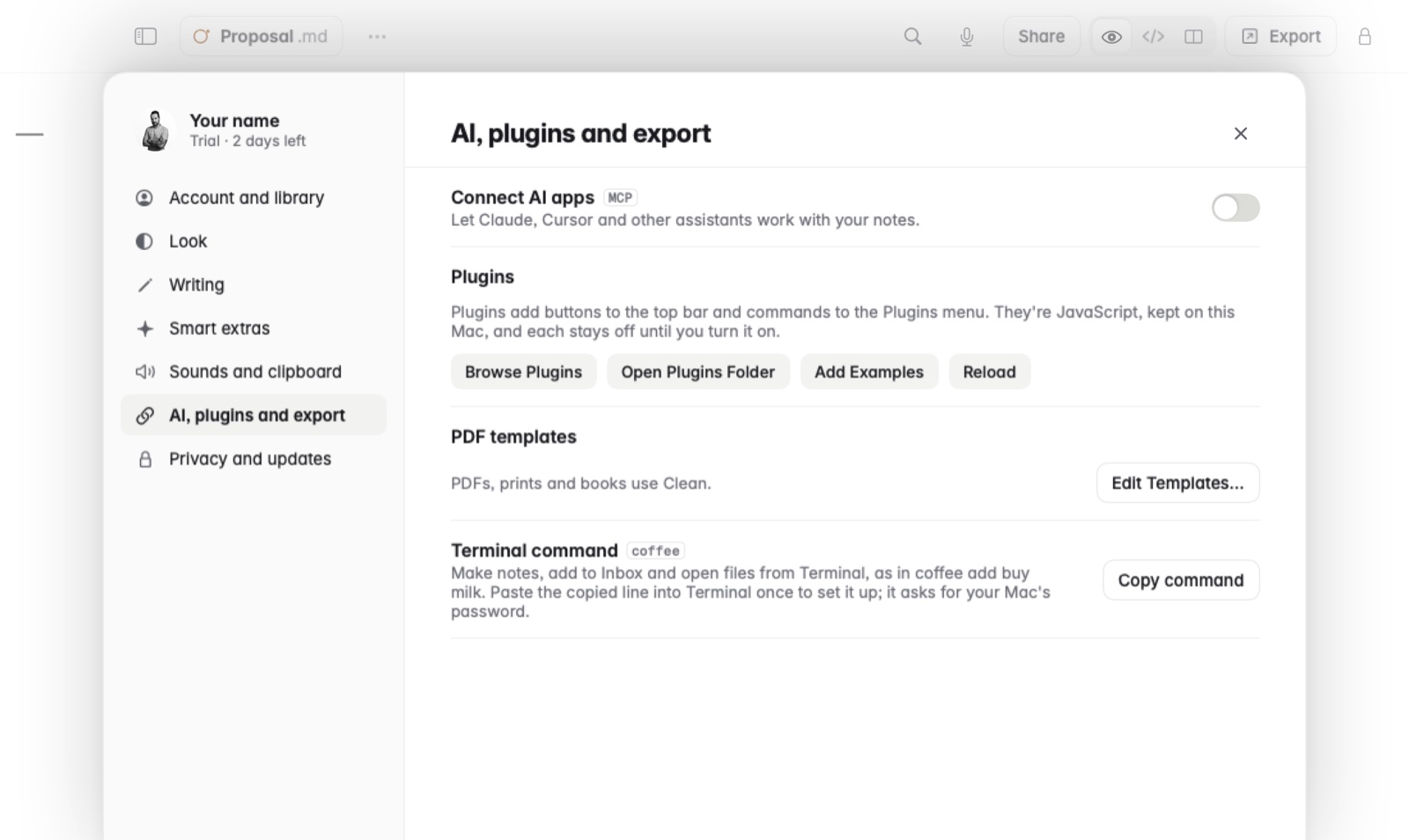
How to connect Claude
- Open Settings and turn on Connect AI apps.
- Choose Install in Claude. It adds Coffee to Claude for Mac in one click, without quitting Claude.
- In Claude, ask about your notes, or ask it to write one.
How to choose what AI apps can do
- In Settings › Connect AI apps, tick Read notes, Edit notes, or both.
- Leave Keep Private notes hidden ticked, so private notes stay hidden.
- In Folders, list the folders AI apps can see, separated by commas. Leave it empty for all folders. A note an AI app makes goes in the first folder.
- In Hidden tags, list tags whose notes AI apps can't see, separated by commas.
Example
You want Claude to help with work notes but never see your journal. In Folders, type Work, Clients. In Hidden tags, type personal. Claude can now read only those two folders, and skips any note tagged #personal inside them.
Good to know
- Coffee keeps a version before an AI app replaces a note, so you can go back. See Version history.
- AI apps also get a calculate tool, for sums written in plain words.
- How to connect your notes to AI tools has the setup for each app.