 Coffee
The graph
Mac
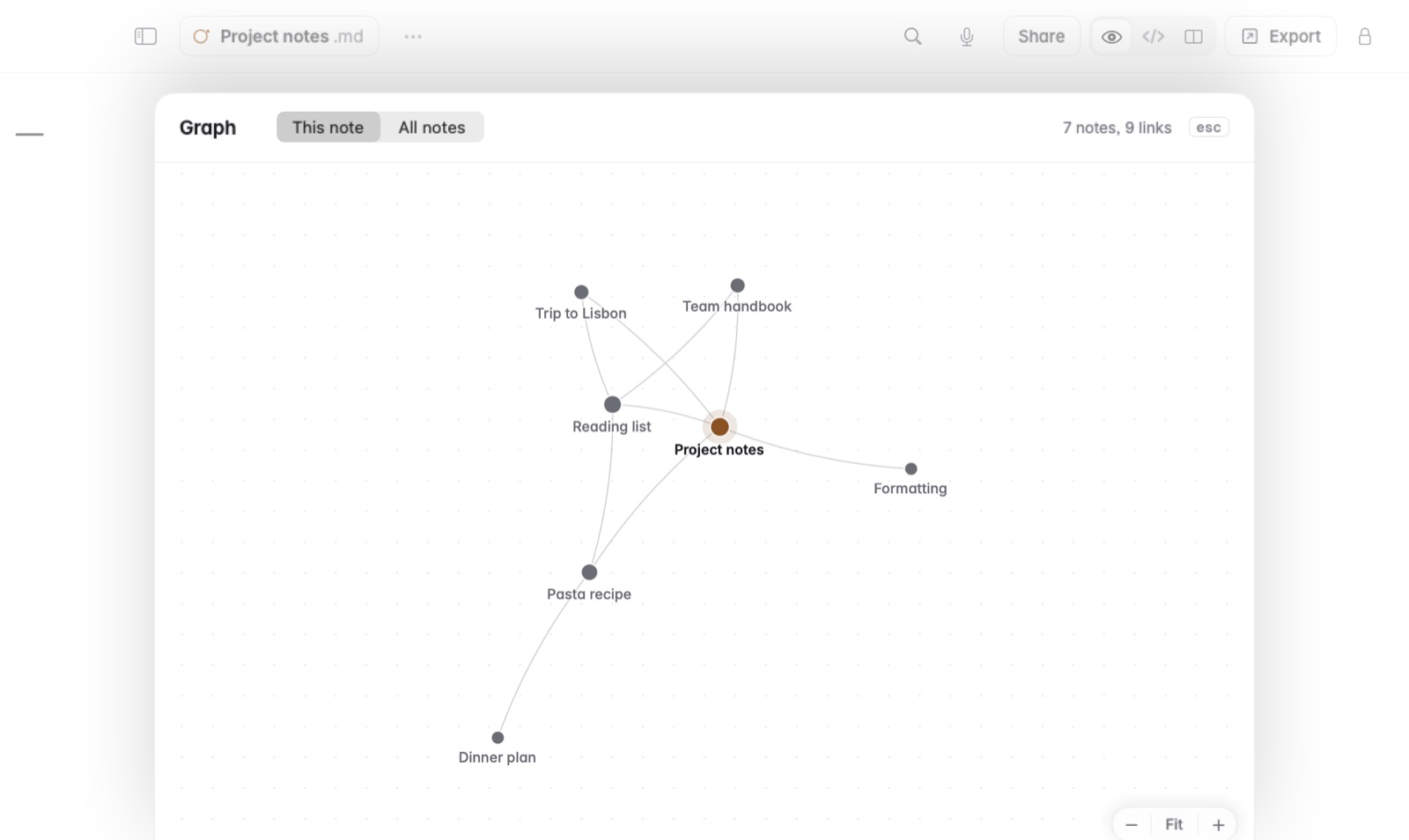
Note › Graph… (⌥⌘G) draws your notes as dots and their links as lines, around the note you're in or across the whole library.
How to use the graph
- Open a note and press ⌥⌘G, or choose Note › Graph….
- Choose This note to see it and the notes near it, or All notes for the whole library.
- Drag to move around, and scroll or pinch to zoom. Fit puts every note back in view.
- Rest the pointer on a dot to see the note's name, where it lives and how many links it has.
- Click a dot to open that note.
Press Esc to close the graph.
Good to know
- Notes take the colour of their top folder, so the parts of your library show as groups.
- A big library can take a moment to lay out.
- A note with no lines to it isn't linked from anywhere yet. Backlinks and mentions can help you find where it belongs.