 Coffee
Replace in all notes
Mac
Note › Replace in All Notes… (⌥⇧⌘F) finds text, or a regular expression, in every note and replaces it. You see each match first, and you can undo the whole replace later.
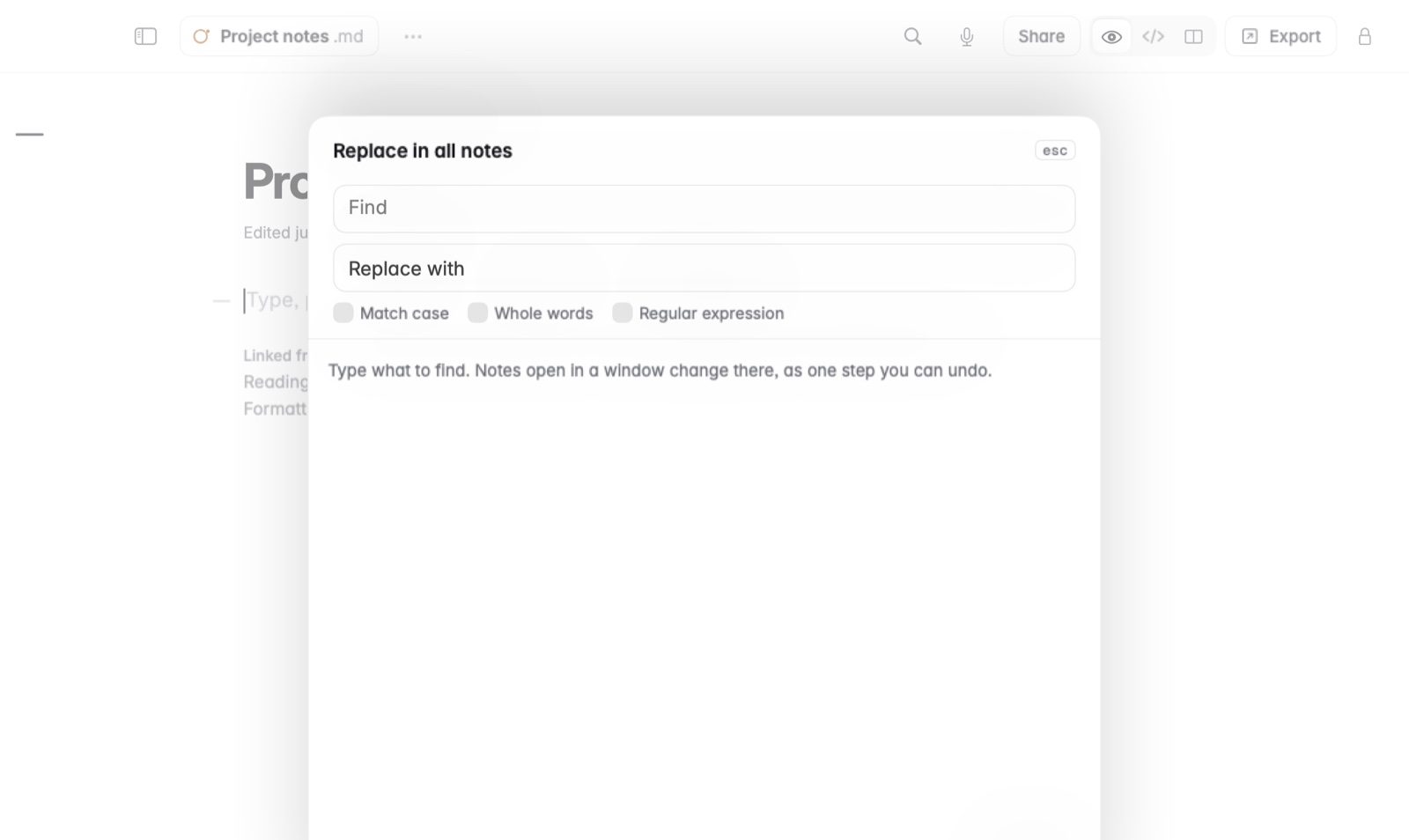
How to replace across notes
- Choose Note › Replace in All Notes…, or press ⌥⇧⌘F.
- Type the text to find, and what it becomes.
- Look through the matches. Each one shows the old text struck out beside its replacement.
- Leave out any match you don't want changed.
- Replace the rest.
If you change your mind, Undo replace puts every note back.
Example
A client renamed itself from Acme to Acme Studio. Find Acme and replace it with Acme Studio, then leave out the match in an old invoice note that should keep the old name.
Good to know
- Regular expressions let you match patterns, such as every date written one way.
- Private notes are never searched or changed.
- Find and replace across many Markdown files on a Mac compares other ways to do it.