 Coffee
Searching your notes
Mac
Note › Search All Notes (⌘K) finds any note as you type, ignoring accents. Edit's Find (⌘F) looks inside the note you're in.
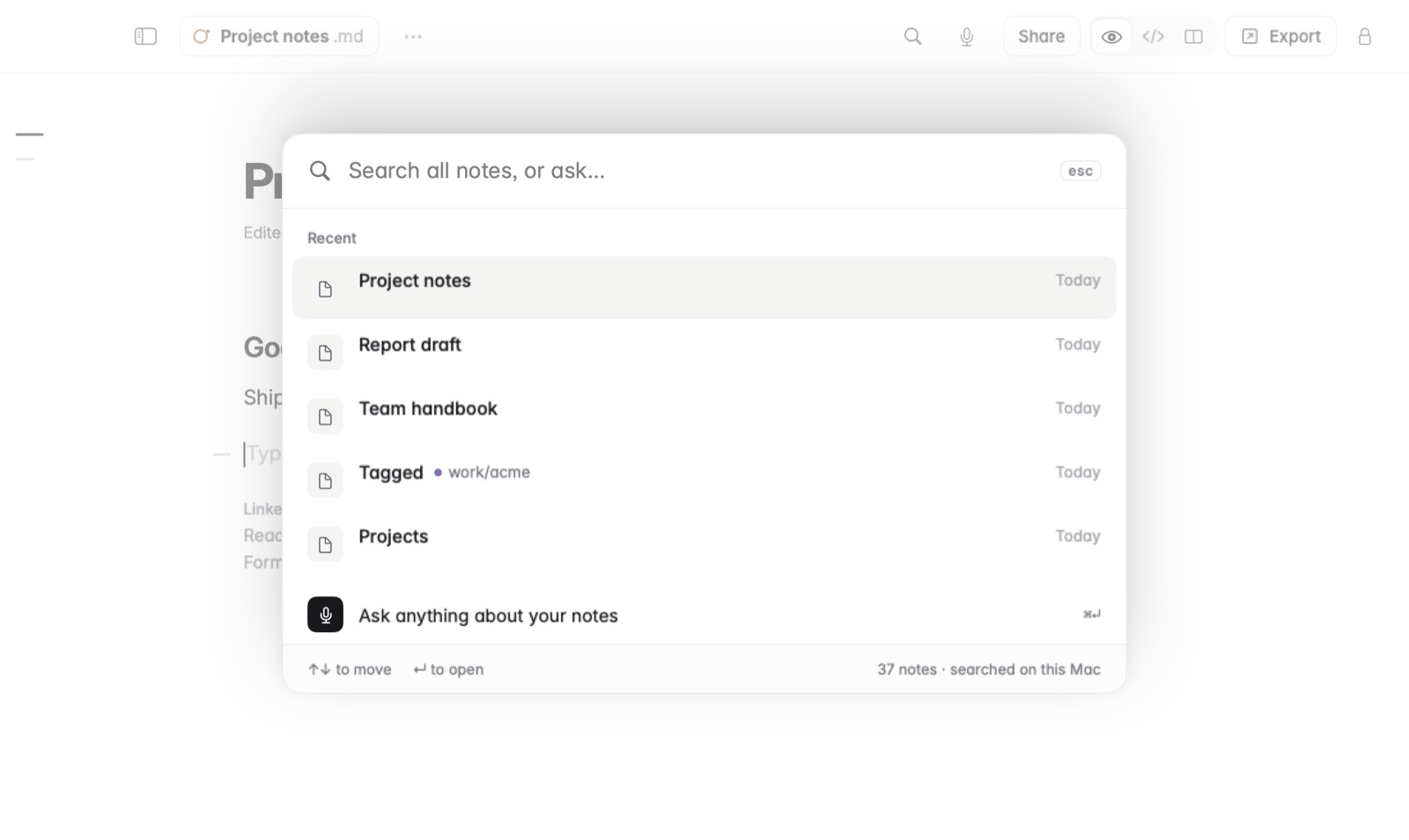
How to search all your notes
- Press ⌘K, or choose Note › Search All Notes.
- Start typing. Results update with each letter, so
cafealso findscafé. - Choose a result to open that note.
Before you type, ⌘K shows your last searches, so you can run one again with a click.
How to keep a search in the sidebar
- Press ⌘K and type the search you want to keep.
- Press ⌘S. The search is saved in the sidebar.
- Click it in the sidebar any time. Its list stays up to date as your notes change.
How to find text in one note
- Press ⌘F, or choose Edit › Find.
- Type what you're looking for.
- Press ⌘G for the next match, and ⇧⌘G for the one before.
Good to know
- Search also finds words inside pictures.
- Settings has Find notes in Spotlight, so the Mac's own search finds your notes too. Spotlight's index stays on your Mac, and private notes are never in it.
- Search runs on your Mac. Nothing you type is sent anywhere.
- To change text in many notes at once, see Replace in all notes.