 Coffee
The note list column
Mac
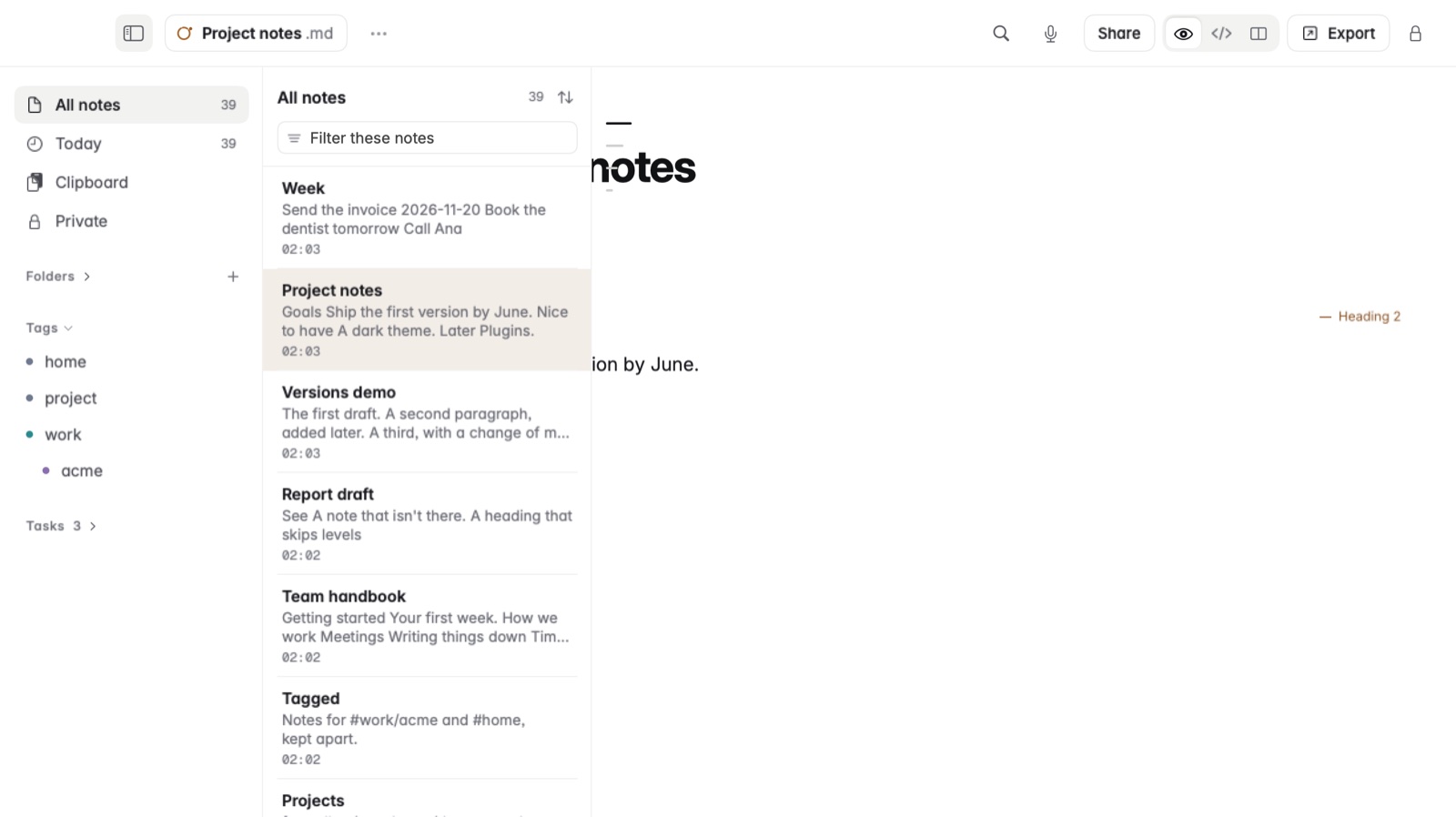
View › Note List (⌥⌘L) adds a column between the sidebar and the note, showing a line or two of each note. It's off until you turn it on.
How to use the note list
- Choose View › Note List, or press ⌥⌘L.
- The column shows a line or two of each note.
- Click a note in the column to open it.
- Drag the column's edge to change its width.
Press ⌥⌘L again to hide the column.
Good to know
The note list helps with a folder of many similar notes, such as weekly meeting notes, where the first lines tell them apart better than the titles do. See The sidebar for sorting and pins.