 Coffee
Links that follow a move
Mac
When you rename or move a note in Coffee, rename a note or a picture in the Finder, or rename or move a folder in either, Coffee changes the links to it in your other notes, so they keep working.
What follows
[[links]]and Markdown links to a note you rename or move.- Links to pictures and other files when you rename or move their folder, in Coffee or in the Finder.
- Links to a picture you rename in the Finder.
- Links from notes inside a folder you move to pictures and notes outside it.
How to undo it
- After a change, Coffee says Updated links in, and the number of notes it changed.
- Choose Undo beside it to put those links back as they were.
Example
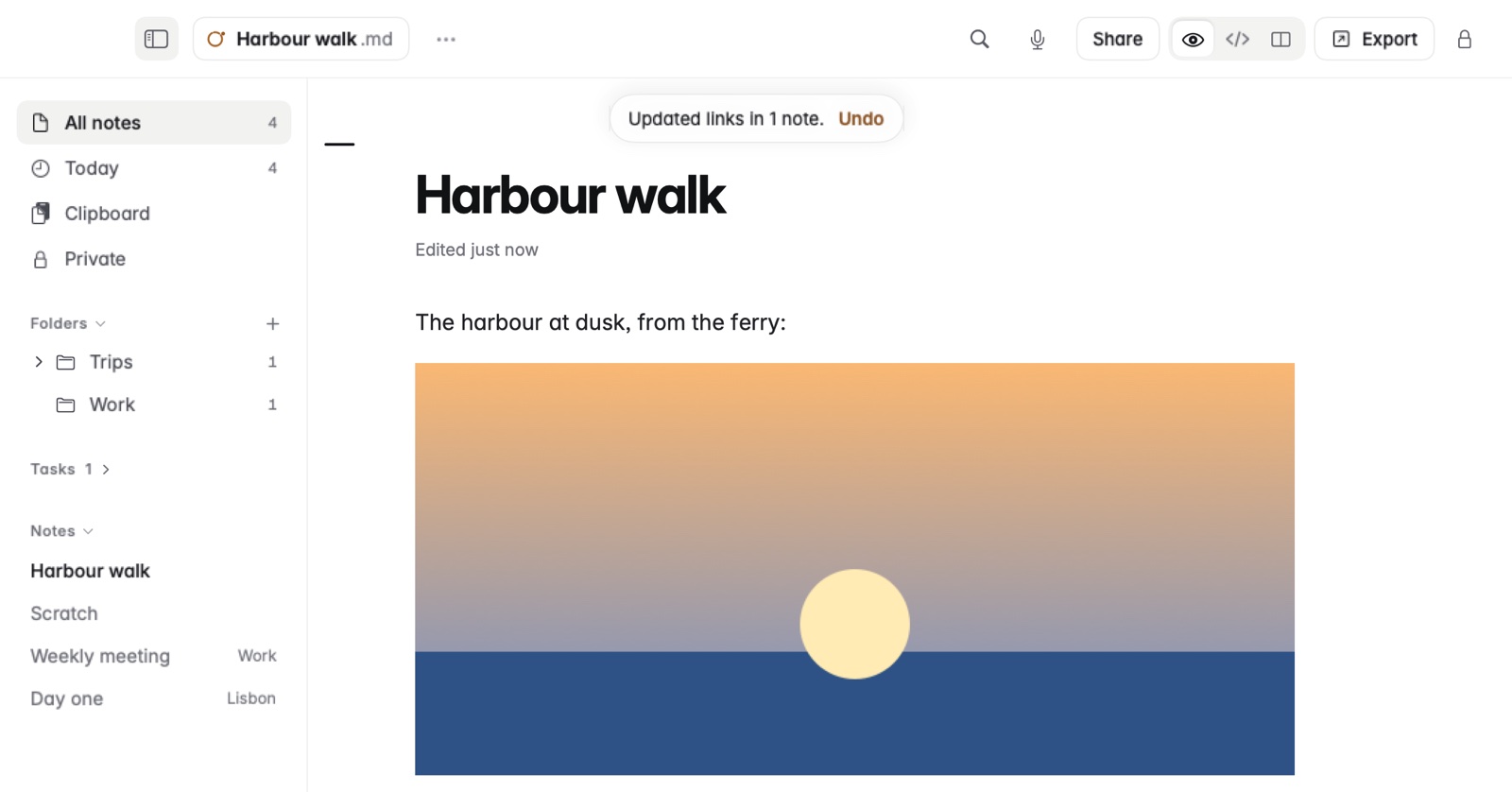
A note shows a picture from a folder called Pics:
Rename the folder Pics to Images, in the sidebar or in the Finder. The note now says:
The picture still shows, and the notice offers Undo.
Good to know
- A picture's size and the way the link was written are kept, such as
![[Pics/harbour.png|300]]or<Pics/harbour.png>. - Code and code blocks are never changed, so an example of a path stays as you wrote it.
- Private notes aren't changed.
- Undo leaves alone a note you've changed since, so nothing you wrote is lost.