 Coffee
Moving notes and folders
Mac
Drag a note or a folder onto a folder in the sidebar to move it there. Right-click a folder for New Folder, Rename… and Show in Finder, or a note for Rename… and Move to….
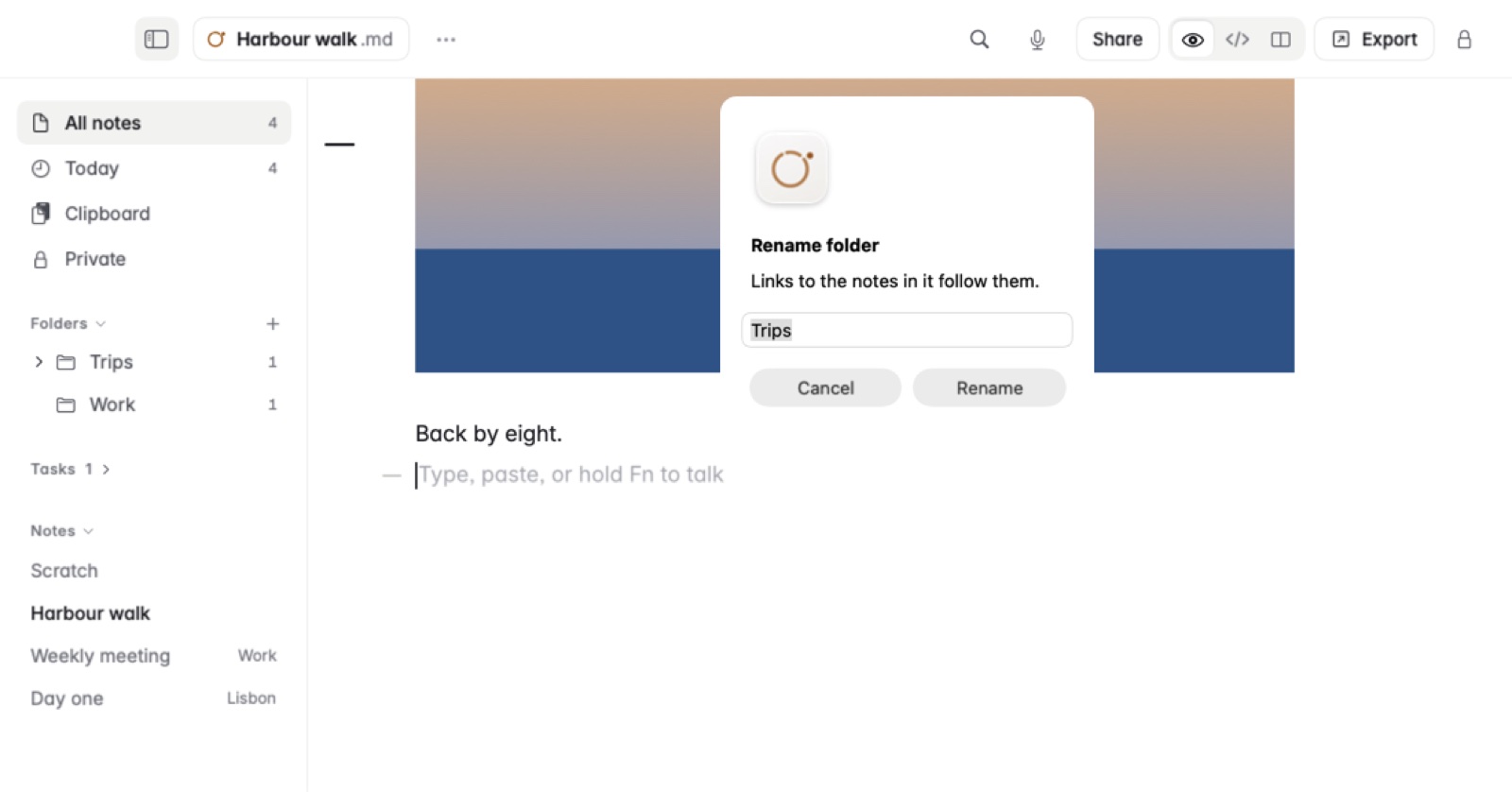
How to move a note or a folder
- Show the sidebar with ⌘\ if it's hidden.
- Drag the note, or the folder, onto the folder you want it in.
- To put it at the top of your library, drop it on All notes.
Hold Option as you drop a note to copy it instead. The original stays where it was.
How to make, rename and find a folder
- Right-click a folder in the sidebar, or the Folders heading for one at the top of your library.
- Choose New Folder, type a name and choose Create.
- To rename a folder, right-click it, choose Rename…, type the new name and choose Rename.
- Show in Finder opens the folder in a Finder window.
How to move a note without dragging
- Right-click the note in the sidebar or in the note list.
- Choose Move to….
- Pick a folder and choose Move Here.
Rename… in the same menu changes the note's file name. What's written in the note stays the same.
Example
You keep a folder called Trips. Right-click it, choose New Folder and call it Lisbon. Drag your note Day one onto Lisbon. It's now in Trips/Lisbon/Day one.md, and every [[Day one]] link in your other notes still opens it.
Good to know
- Notes dragged in from the Finder are copied into the folder you drop them on. The originals stay where they were.
- A moved or renamed note keeps its links, pictures, versions, comments and pin. Links in other notes follow it. See Links that follow a move.
- Coffee never replaces a file with the same name. The one moved in gets a name of its own.
- A private note moves only while it's open and unlocked.
- Folders added from elsewhere stay where they are on disk. See Folders from anywhere.