 Coffee
Preview, Markdown and split view
MaciPhone and iPad
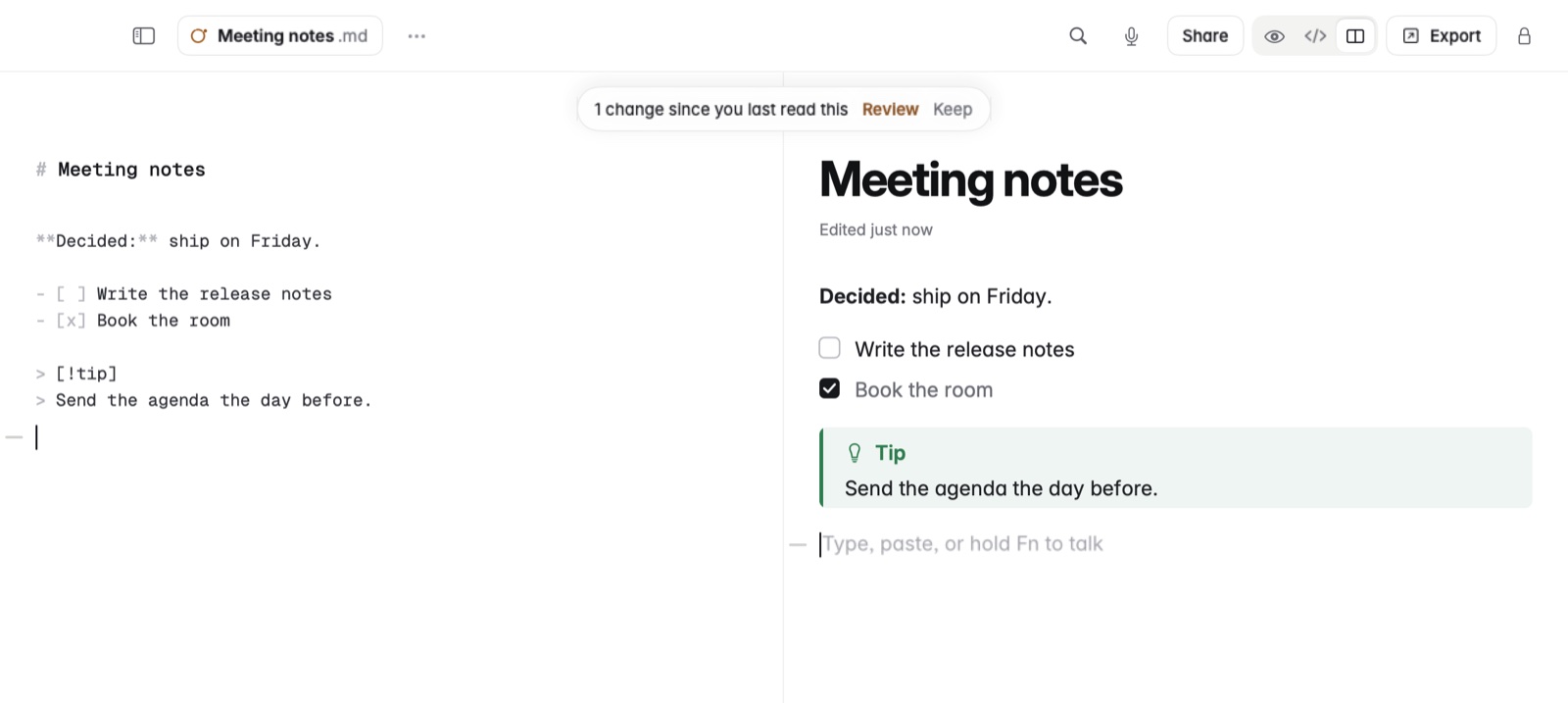
Coffee shows a note three ways: Preview shows the finished page, Markdown shows every mark, and Split view shows both side by side.
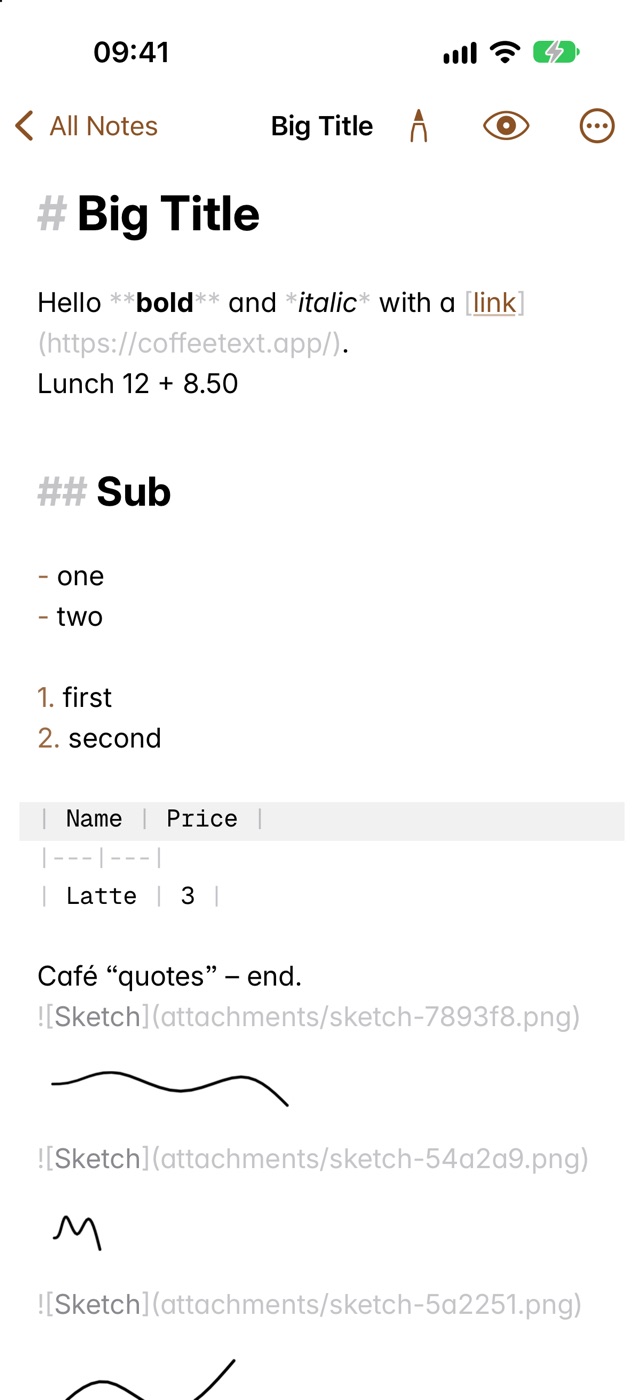
- Preview hides the marks until the caret reaches them, so you read the page as it will look.
- Markdown shows every mark, in a monospaced font, so you see exactly what's in the file.
- Split view shows the Markdown on the left and the page on the right. You can type on either side, and both update.
How to switch on the Mac
- Choose View › Preview / Markdown (⌘/) to switch between Preview and Markdown.
- Choose View › Split View (⌥⌘/) to see both at once.
How to switch on iPhone and iPad
Preview and Markdown are one tap apart in the bar.
Example
In Markdown
## Packing list
- **Passport** and *charger*
In Coffee Preview
Packing list
- Passport and charger
In Preview, this reads as a heading and a list with bold and italic words. In Markdown, you see the ##, -, ** and * as typed.
Good to know
Coffee opens in the view you left it in. The file is the same whichever view you use.